
Delta Lake Time Travel: A Practical Guide
Query any previous version of a Delta table, restore data after accidental deletes, and audit changes over time. Covers VERSION AS OF, TIMESTAMP AS OF, RESTORE, DESCRIBE HISTORY, streaming replay, and the VACUUM trade-off — with SQL and PySpark examples.

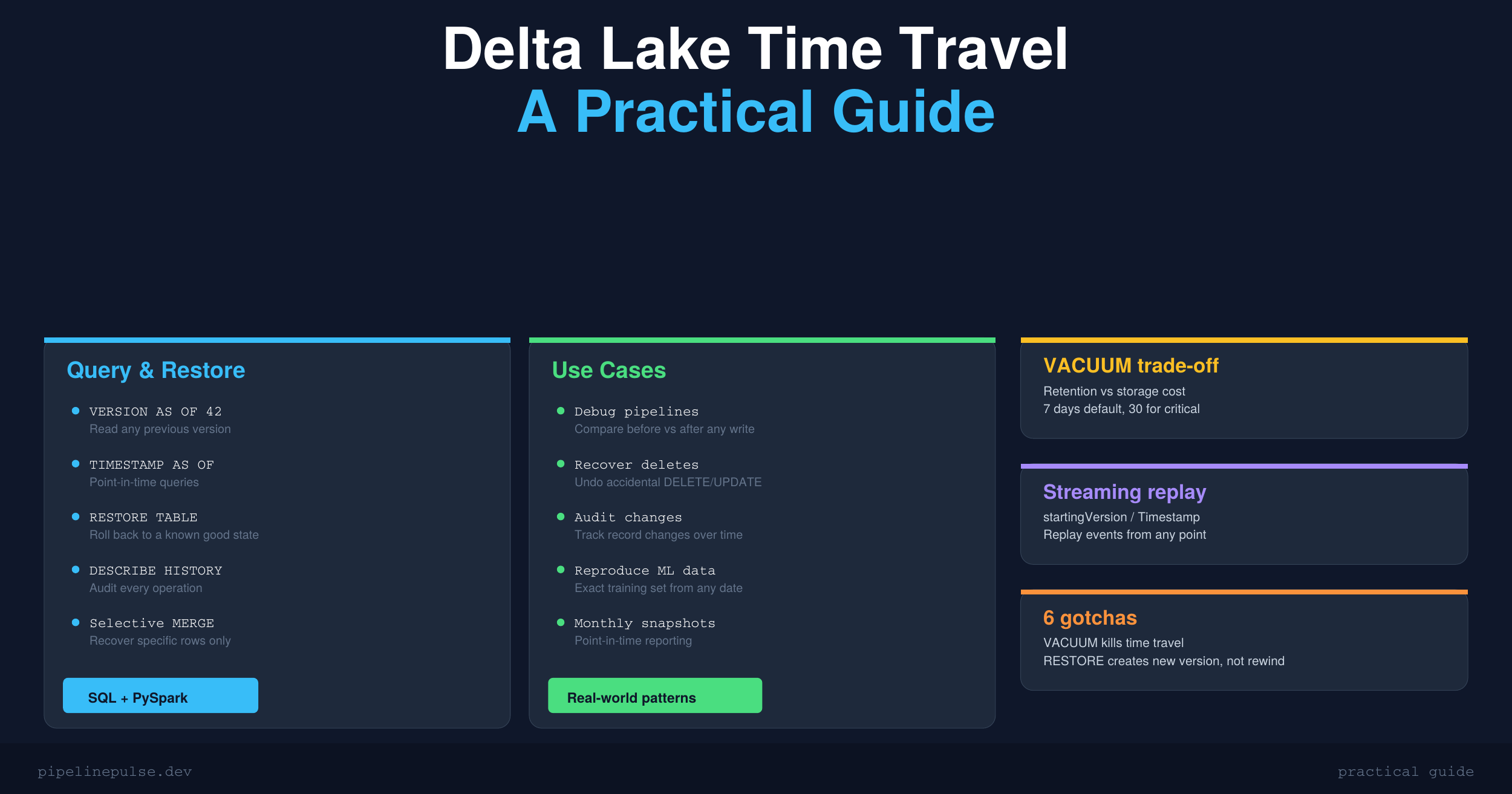
You just ran an UPDATE that wiped out half your table. Or maybe someone's pipeline overwrote production data with a bad transformation. Either way, your stakeholders are panicking and you need the old data back — fast.
This is where Delta Lake time travel saves you. It lets you query any previous version of a table, restore data to a point in time, and audit exactly what changed and when. It's one of the most underused features in Delta Lake, and one of the most valuable when things go wrong.
This guide covers every practical time travel scenario — querying history, restoring data, debugging pipeline issues, and managing the storage costs that come with it.
How Time Travel Works
Every time you write to a Delta table — insert, update, delete, merge — Delta Lake creates a new version of that table. Each version is recorded in the transaction log (_delta_log/), which stores metadata about what files were added and removed.
Time travel lets you read any of these previous versions. The old data files aren't deleted immediately — they stick around until you run VACUUM.
# Your table has been written to 50 times
# Each write created a new version: 0, 1, 2, ... 49
# The current version is 49
# You can read ANY previous version
Two ways to access old versions: by version number or by timestamp.
Querying Previous Versions
By version number
-- SQL: read version 10 of the table
SELECT * FROM catalog.schema.orders VERSION AS OF 10

-- SQL: read the version before the latest
SELECT * FROM catalog.schema.orders VERSION AS OF 48
# PySpark: read a specific version
df = spark.read.format('delta') \
    .option('versionAsOf', 10) \
    .table('catalog.schema.orders')

# PySpark: using path instead of table name
df = spark.read.format('delta') \
    .option('versionAsOf', 10) \
    .load('/mnt/delta/orders')
By timestamp
-- SQL: read the table as it was at a specific time
SELECT * FROM catalog.schema.orders TIMESTAMP AS OF '2026-03-15 14:30:00'

-- SQL: read the table as it was yesterday
SELECT * FROM catalog.schema.orders TIMESTAMP AS OF '2026-03-22'
# PySpark: read by timestamp
df = spark.read.format('delta') \
    .option('timestampAsOf', '2026-03-15 14:30:00') \
    .table('catalog.schema.orders')
The timestamp approach is usually more practical — you rarely know the exact version number, but you know "I need the data from before yesterday's pipeline ran."
Viewing Table History
Before you can time travel, you need to know what versions exist and what happened in each one.
DESCRIBE HISTORY
DESCRIBE HISTORY catalog.schema.orders

-- Limit to recent changes
DESCRIBE HISTORY catalog.schema.orders LIMIT 20
This returns one row per version with:
| Column | What it tells you |
|---|---|
version |
Version number (0, 1, 2, ...) |
timestamp |
When the operation happened |
operation |
What happened (WRITE, MERGE, DELETE, OPTIMIZE, etc.) |
operationParameters |
Details (predicates, mode, etc.) |
operationMetrics |
Rows affected, files added/removed |
userName |
Who ran the operation |
notebook |
Which notebook triggered it |
Finding the right version
-- Find when a specific operation happened
DESCRIBE HISTORY orders
-- Look for the MERGE or UPDATE that caused the problem
-- Note the version number BEFORE that operation

-- Then query that version
SELECT * FROM orders VERSION AS OF 42  -- the version before the bad write
This is the standard debugging workflow: check history → find the bad operation → query the version right before it.
📋 Debugging a broken Delta table?
Time travel is one step in the diagnosis. The Delta Table Troubleshooting Checklist walks through every common failure — duplicates, MERGE conflicts, VACUUM issues, and corruption — step by step. $9
Restoring Data
RESTORE command (the clean way)
-- Restore to a specific version
RESTORE TABLE catalog.schema.orders TO VERSION AS OF 42

-- Restore to a timestamp
RESTORE TABLE catalog.schema.orders TO TIMESTAMP AS OF '2026-03-15 14:00:00'
RESTORE creates a new version that matches the old state. It doesn't delete the intermediate versions — your history is preserved. After restoring, the table is at version 50 (for example) but its contents match version 42.
# PySpark: restore
from delta.tables import DeltaTable

dt = DeltaTable.forName(spark, 'catalog.schema.orders')
dt.restoreToVersion(42)

# Or by timestamp
dt.restoreToTimestamp('2026-03-15 14:00:00')
Selective restore (recover specific rows)
Sometimes you don't want to restore the entire table — you just need to recover specific rows that were deleted or overwritten:
-- Step 1: Find the rows you need from the old version
CREATE OR REPLACE TEMP VIEW recovered_rows AS
SELECT * FROM catalog.schema.orders VERSION AS OF 42
WHERE customer_id IN ('C001', 'C002', 'C003')

-- Step 2: Merge them back into the current table
MERGE INTO catalog.schema.orders AS target
USING recovered_rows AS source
ON target.order_id = source.order_id
WHEN MATCHED THEN UPDATE SET *
WHEN NOT MATCHED THEN INSERT *
This is more surgical than a full RESTORE — you recover only the affected rows without rolling back other legitimate changes that happened in between.
If you're comfortable with MERGE, you already know the syntax. If not, my MERGE INTO guide covers everything from basic upserts to conditional logic.
Practical Use Cases
1. Debugging pipeline issues
Something went wrong in your pipeline and the data looks off. Use time travel to compare before and after:
-- What did the table look like before the last pipeline run?
-- Find the version before the latest MERGE/WRITE in DESCRIBE HISTORY

-- Compare row counts
SELECT 'before' AS version, COUNT(*) AS rows
FROM orders VERSION AS OF 42
UNION ALL
SELECT 'after', COUNT(*)
FROM orders VERSION AS OF 43

-- Find rows that changed
SELECT a.order_id, a.amount AS old_amount, b.amount AS new_amount
FROM orders VERSION AS OF 42 a
FULL OUTER JOIN orders VERSION AS OF 43 b
    ON a.order_id = b.order_id
WHERE a.amount != b.amount
   OR a.order_id IS NULL
   OR b.order_id IS NULL
This is exactly the kind of debugging pattern my Delta Table Troubleshooting Checklist walks through step by step.
2. Auditing changes over time
Track how a specific record changed across versions:
-- See how a specific order changed over the last 5 versions
SELECT 49 AS version, * FROM orders VERSION AS OF 49 WHERE order_id = 12345
UNION ALL
SELECT 48, * FROM orders VERSION AS OF 48 WHERE order_id = 12345
UNION ALL
SELECT 47, * FROM orders VERSION AS OF 47 WHERE order_id = 12345
UNION ALL
SELECT 46, * FROM orders VERSION AS OF 46 WHERE order_id = 12345
UNION ALL
SELECT 45, * FROM orders VERSION AS OF 45 WHERE order_id = 12345
ORDER BY version
This is useful for compliance audits, debugging SCD Type 2 implementations, or just understanding how data flows through your pipeline.
3. Reproducing ML training data
If you trained a model last week and need to reproduce the exact dataset:
# Read the exact data that was available when you trained
training_data = spark.read.format('delta') \
    .option('timestampAsOf', '2026-03-10 08:00:00') \
    .table('catalog.gold.features')

# This guarantees reproducibility even if the table has been updated since
4. Recovering from accidental deletes
-- Someone ran DELETE without a WHERE clause (it happens)
-- Step 1: Check history to find the version before the delete
DESCRIBE HISTORY orders LIMIT 5
-- Version 49: DELETE (operation)  ← this is the bad one
-- Version 48: MERGE (operation)  ← this is the last good state

-- Step 2: Restore
RESTORE TABLE orders TO VERSION AS OF 48
5. Creating point-in-time snapshots for reporting
-- End-of-month snapshot for finance
CREATE TABLE catalog.snapshots.orders_202603 AS
SELECT * FROM catalog.schema.orders TIMESTAMP AS OF '2026-03-31 23:59:59'
Time Travel and VACUUM: The Trade-off
Here's the critical thing: VACUUM deletes the old data files that time travel depends on.
-- Default: keep 7 days of history
VACUUM catalog.schema.orders RETAIN 168 HOURS

-- After VACUUM, you can NOT time travel to versions
-- whose data files were removed
This means there's a direct trade-off between storage costs and time travel capability:
| Retention | Time travel window | Storage cost |
|---|---|---|
| 168 hours (7 days, default) | ~7 days | Moderate |
| 720 hours (30 days) | ~30 days | Higher |
| 24 hours (1 day) | ~1 day | Low but risky |
My recommendation: keep the default 7 days for most tables. Extend to 30 days for critical tables where recovery is essential. Never go below 24 hours in production.
For a deeper dive into VACUUM and table maintenance, see my guide on OPTIMIZE, Z-ORDER, and VACUUM.
What happens when you try to time travel past VACUUM?
AnalysisException: The requested version 35 has been vacuumed.
The earliest available version is 42.
You get a clear error. The data is gone — VACUUM physically deleted the Parquet files. This is why retention settings matter.
Understanding time travel deeply requires understanding how Delta Lake stores data — the transaction log, Parquet files, and versioning. DataCamp's Delta Lake courses cover the storage layer fundamentals that make these concepts intuitive.
Time Travel with Streaming
If you're reading a Delta table as a stream, you can start from a specific version:
# Start streaming from a specific version (replay from that point)
df = spark.readStream.format('delta') \
    .option('startingVersion', 42) \
    .table('catalog.schema.orders')

# Start from a specific timestamp
df = spark.readStream.format('delta') \
    .option('startingTimestamp', '2026-03-15 14:00:00') \
    .table('catalog.schema.orders')
This is useful for replaying events through a streaming pipeline after a fix — you process all changes from a known good version forward.
Time Travel and Schema Evolution
One thing to be aware of: if the table's schema changed between the current version and the version you're time-traveling to, the old version uses the old schema.
-- Current schema has 10 columns (column 'status' was added in version 45)
-- Version 40 only had 9 columns

SELECT * FROM orders VERSION AS OF 40
-- Returns 9 columns — 'status' column doesn't exist in this version
This also applies to dropped columns — if you dropped a column using column mapping, time travel to a version before the drop will still show that column.
Common Gotchas
1. VACUUM kills time travel. Once old files are vacuumed, those versions are gone forever. Set retention carefully.
2. RESTORE creates a new version, it doesn't rewind. After RESTORE TO VERSION AS OF 42, the table is at a new version (e.g., 50) that matches version 42's content. The history between 42 and 50 is preserved.
3. Timestamp resolution is to the nearest version. TIMESTAMP AS OF '2026-03-15 14:30:00' returns the version that was current at that timestamp — it doesn't interpolate between versions.
4. Time travel reads old data files but uses current metadata. This means table properties, column mapping settings, and protocol versions are always current — only the data goes back in time.
5. Don't use time travel as a backup strategy. It's a convenience feature, not a disaster recovery system. VACUUM will eventually remove old versions. For real backups, use DEEP CLONE to a separate location.
6. Large time travel queries scan old files. Reading version 0 of a table that's been compacted via OPTIMIZE means reading the old, pre-compacted small files (if they haven't been vacuumed). This can be slow.
Quick Reference
| Task | SQL | PySpark |
|---|---|---|
| Query by version | SELECT * FROM t VERSION AS OF 10 |
.option('versionAsOf', 10) |
| Query by timestamp | SELECT * FROM t TIMESTAMP AS OF '...' |
.option('timestampAsOf', '...') |
| View history | DESCRIBE HISTORY t |
DeltaTable.forName(spark, 't').history() |
| Restore by version | RESTORE TABLE t TO VERSION AS OF 10 |
dt.restoreToVersion(10) |
| Restore by timestamp | RESTORE TABLE t TO TIMESTAMP AS OF '...' |
dt.restoreToTimestamp('...') |
| Stream from version | — | .option('startingVersion', 10) |
| Create snapshot | CREATE TABLE snap AS SELECT * FROM t VERSION AS OF 10 |
df.write.saveAsTable('snap') |
Get the Checklist
When your Delta table is broken and you need to diagnose and fix it fast — time travel, VACUUM issues, duplicate records, merge conflicts — grab the Delta Table Troubleshooting Checklist on Gumroad for $9. It walks through every common failure scenario step by step.
Also check out:
- Schema Evolution Quick Reference ($4.99)
- PySpark Window Functions Cheat Sheet ($4.99)
- Data Quality Monitoring Playbook ($4.99)
- Databricks Debugging Kit ($4.99)
- Databricks Cost Optimization Checklist ($4.99)
Building data pipelines that don't break at 3am? That's what PipelinePulse is about. More guides at pipelinepulse.dev.